---
title: Dashboard - Campaigns
description: This section displays all the campaigns created and their affiliated posts.
---
[Skip to content](https://help.bodyguard.ai/dashboard-campaigns#main-content)
- [English](https://help.bodyguard.ai/dashboard-campaigns)
- [Français](https://help.bodyguard.ai/fr/dashboard-campagnes)
English
Show submenu for translations
[](https://help.bodyguard.ai/fr/knowledge?hsLang=en)
- [Visit Bodyguard.ai](https://www.bodyguard.ai/en)
Open main navigation
Close main navigation
- [Visit Bodyguard.ai](https://www.bodyguard.ai/en)
- - [English](https://help.bodyguard.ai/dashboard-campaigns)
- [Français](https://help.bodyguard.ai/fr/dashboard-campagnes)
English
Show submenu for translations
- [Contact us](mailto:help@bodyguard.ai)
[Contact us](mailto:help@bodyguard.ai)
How can we help you?
- There are no suggestions because the search field is empty.
1. [Help Center](https://help.bodyguard.ai/?hsLang=en)
2. [Bodyguard Dashboard](https://help.bodyguard.ai/bodyguard-dashboard?hsLang=en)
# Dashboard - Campaigns
## This section displays all the campaigns created and their affiliated posts.
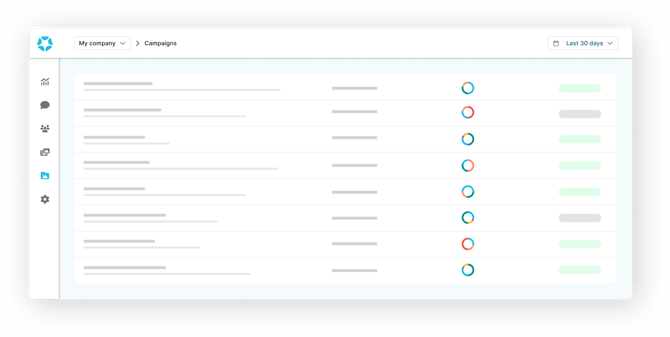
This section displays all campaigns created in your organization and their associated posts. Campaigns help you monitor performance, audience reactions and moderation activity around specific events, topics or marketing initiatives.
You can add posts manually or use **Auto-collection** to automatically include publications matching your criteria, including future posts.
### Table of content
- [How to display campaigns](https://help.bodyguard.ai/dashboard-campaigns#displaycampaigns)
- [Search for a campaign](https://help.bodyguard.ai/dashboard-campaigns#search)
- [How to create and edit campaigns](https://help.bodyguard.ai/dashboard-campaigns#createandeditcampaigns)
- [Create a campaign](https://help.bodyguard.ai/dashboard-campaigns#createcampaign)
- [Set up auto-collection](https://help.bodyguard.ai/dashboard-campaigns#auto-collection)
- [Edit a campaign](https://help.bodyguard.ai/dashboard-campaigns#editcampaign)
- [How to add and remove posts from campaigns](https://help.bodyguard.ai/dashboard-campaigns#addandremoveposts)
- [Add posts to a campaign](https://help.bodyguard.ai/dashboard-campaigns#addposts)
- [Remove posts from a campaign](https://help.bodyguard.ai/dashboard-campaigns#removeposts)
- [How to monitor campaigns performance](https://help.bodyguard.ai/dashboard-campaigns#monitorcampaigns)
- [From the Campaigns section](https://help.bodyguard.ai/dashboard-campaigns#campaignsection-monitoring)
- [From the Analytics section](https://help.bodyguard.ai/dashboard-campaigns#analyticssection-monitoring)
- [From the Messages section](https://help.bodyguard.ai/dashboard-campaigns#messagesection-monitoring)
- [From the Posts section](https://help.bodyguard.ai/dashboard-campaigns#postsection-monitoring)
### How to display campaigns

There are different filters and parameters to display campaigns and create or find the one you are looking for and its statistics:
- **Time range**: available on all main pages sits a date picker, allowing flexibility and precision. You can select from preset date ranges, as well as custom picks using:
- - **Between:** pick two dates to retrieve messages published on posts included in the campaign from the start date to the end one.
- **Last:** select a volume and a temporality (hour, day, week, month...) and choose to include the current period or not.
- **After:** pick an exact date and retrieve comments published on posts included in a campaign from that precise time to now.
- **Before:** pick an exact date and retrieve comments published on posts included in a campaign until that precise time.
- **Period to date:** choose a time frame (day, week, month, quarter...) to retrieve comments published on posts included in a campaign on the range to now.
- **Status**: filter campaigns by their status (active if they are ongoing - archived if they are not running).
- **Auto-collection:** filter campaigns with an active Auto-collection or those without one. The new Auto-collection column displays an **Active** badge when automatic collection is enabled, or **N/A** when no configuration exists.
- **Sort by**: choose the date of publication or the date of creation of the campaign.
Select multiple campaigns or all campaigns displayed on the page to archive, restore or delete them in a single action.
#### Search for a campaign
**Search logic**
Our search allows you to combine keywords and phrases using logical operators to refine your results.
Only special characters covered are "@" and "#".
**Basic concepts**
- **Keywords**
Keywords are individual words matched **exactly**.
Multiple keywords are automatically combined with an **implicit AND**.
Example: `customer service` finds results containing both *customer* AND *service*.
- **Phrases**
Phrases are enclosed in double quotes (“”) and match an exact sequence of words.
Example: `“customer service”`
**Logical operators**
- **AND**
Finds results containing all specified keywords.
AND is applied **by default** between keywords.
Example: `apple AND orange` or `apple orange`
- **OR**
Finds results containing either one keyword or another.
Example: `apple OR orange`
**Grouping**
- **Parentheses**
Use `()` to control query logic.
Example: `(apple OR orange) AND banana`
- **Examples**
`coffee` → exact word match
`“black cat”` → exact phrase
`black coffee` → implicit AND
`cat OR dog` → either term
`(cat OR dog) AND nice` → combined logic
`“black cat” AND dog` → phrase + keyword
- **Error handling**
Invalid or incomplete queries return an error.
Ensure operators are placed correctly and all parentheses and quotes are closed.
Examples: `AND`, `word AND`, `)`, `cat AND (`, `”`
**Tips**
- Be specific
- Use quotes for exact phrases
- Add keywords to refine (implicit AND)
- Use OR to broaden
- Combine operators with parentheses
### How to create and edit campaigns
#### Create a campaign
Once you've entered your campaign name and optional description, choose how you want to add posts:
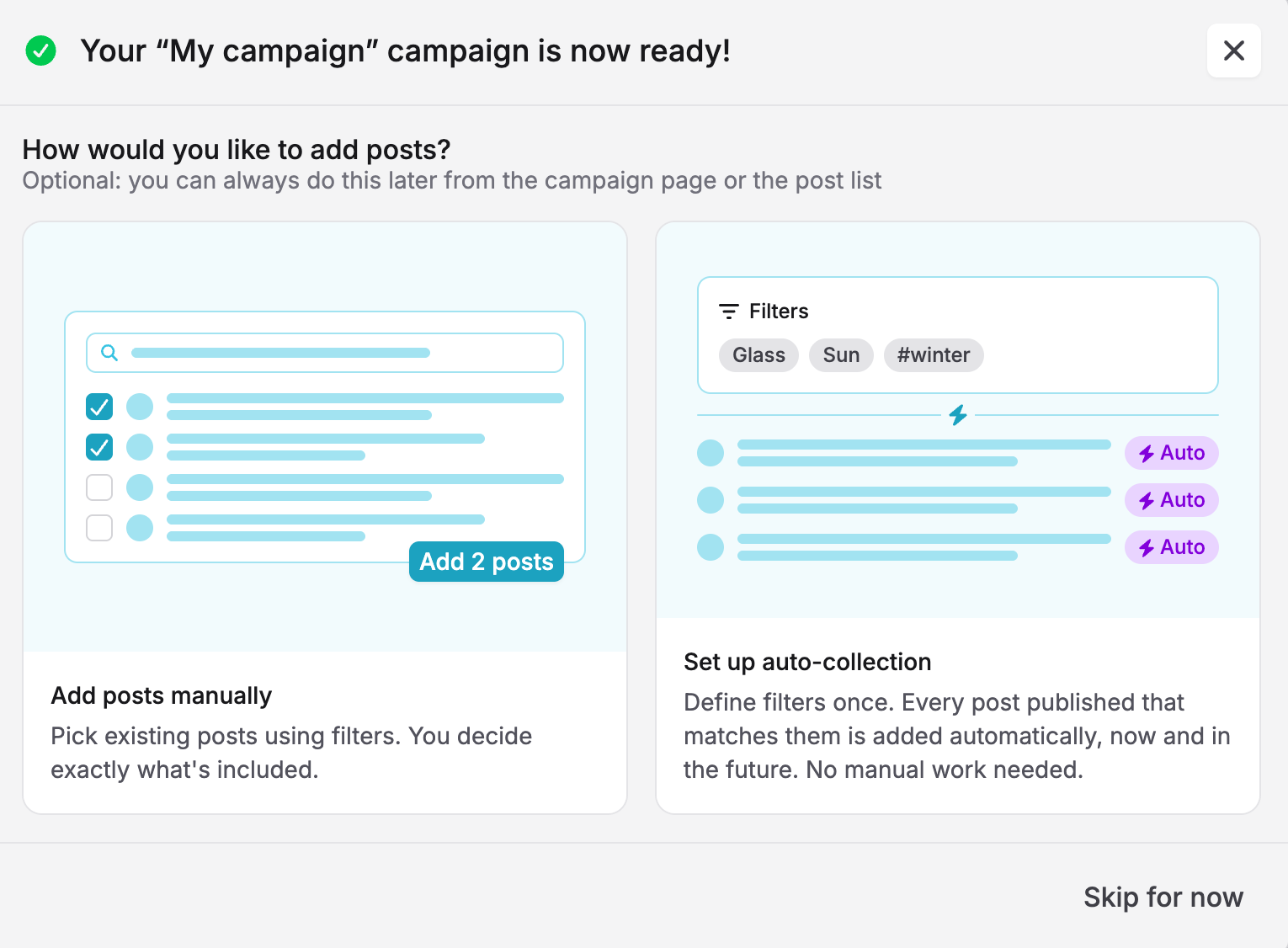
- **Add posts manually:** select the publications you want to include in your campaign.
- **Auto-collection:** define criteria to automatically add matching posts, including future publications.
You can also configure Auto-collection later from an existing campaign.
#### Set up auto-collection
Auto-collection allows you to automatically gather social media posts based on criteria you define, without having to add each publication manually.
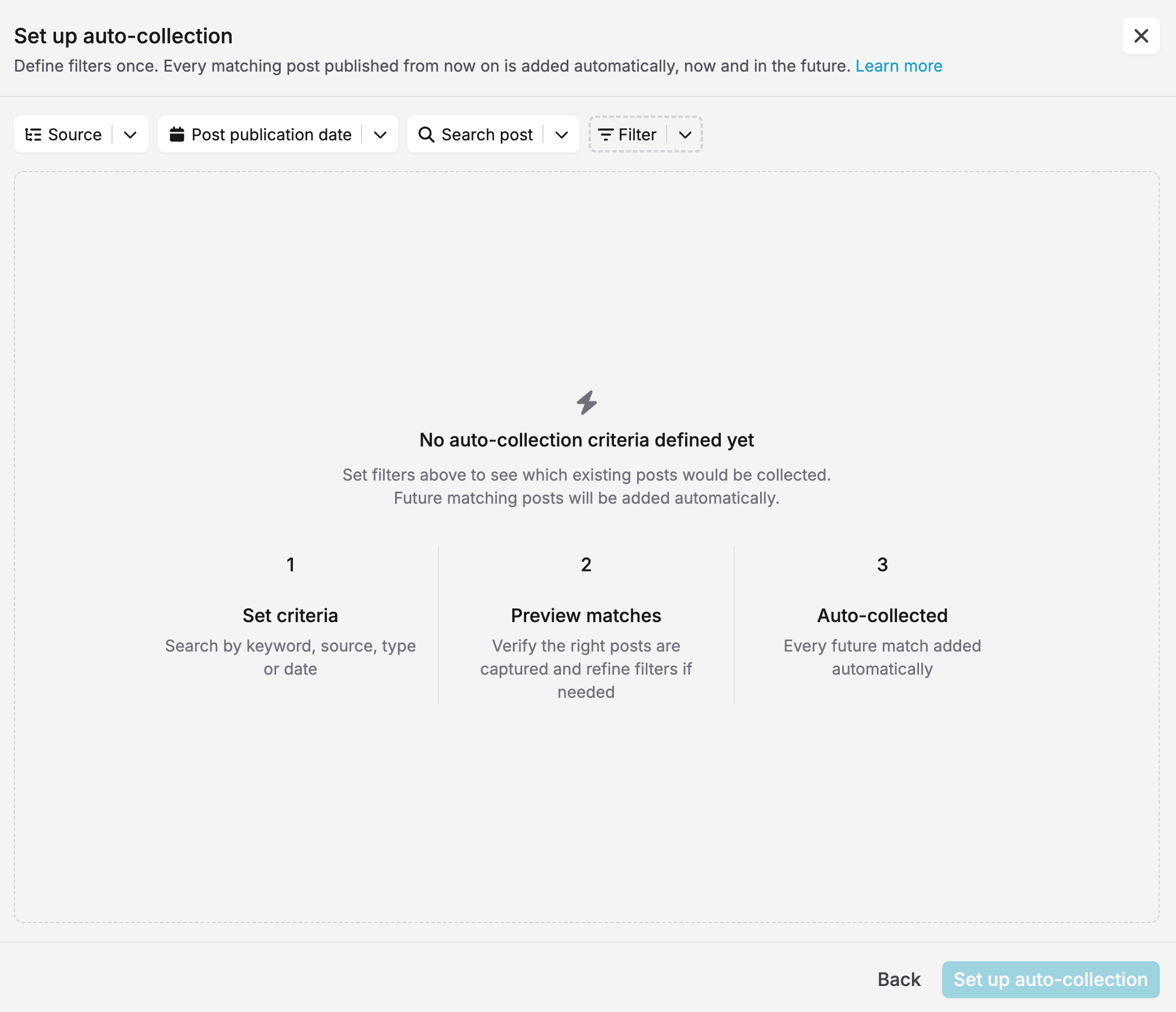
You can configure your collection using:
- **Keywords:** specify the words, hashtags or mentions to look for.
- **Sources:** select the social media accounts to include.
- **Date range:** define the publication period to cover.
For example, a *Fashion Week 2026* campaign could automatically collect posts published between selected dates containing `#FW26`, `#MenFW26` or `@PharrellWilliams`.
Once activated, all matching posts are added to your campaign, including future publications. If no end date is specified, the collection continues indefinitely.
**You can set up Auto-collection from several locations:**
- **During campaign creation:** select Auto-collection in the second step.
- **From the Campaigns list:** hover over N/A in the Auto-collection column and click +.
- **From campaign details:** click Add posts, then select Auto-collection.
- **From the Posts page:** open the campaign details and select Set up auto-collection.
**Edit or delete Auto-collection**
From the Campaigns list, hover over the Active badge to edit or delete the configuration.
Please note that Auto-collection cannot currently be paused. Deleting the configuration is irreversible.
**Limits and specific cases**
- The preview displays a maximum of 500 matching posts, but all matching publications are collected.
- A campaign can contain up to 10,000 posts.
**Auto-collection permissions**
Creating, editing and deleting Auto-collection configurations requires an **Admin or Editor role**.
Members can view Auto-collection information only when they have full access to all sources associated with the campaign.
#### Edit a campaign
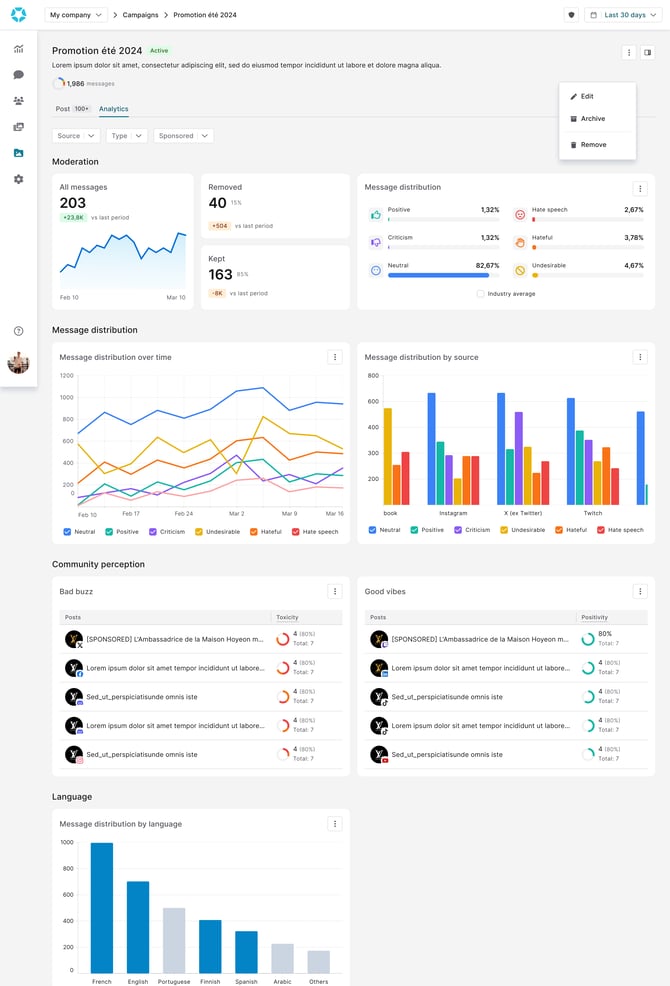
From the campaign page, you can edit campaigns through the 3 dots on the right of your screen. From here, you can:
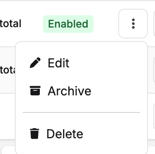
- **Edit**: change the name or the description of your campaign.
- **Archive**: for past campaigns, the archive allows to remove a campaign from filters while keeping its related analytics.
- **Delete**: the action will remove the campaign.
### How to add and remove posts from campaigns
#### Add posts to a campaign
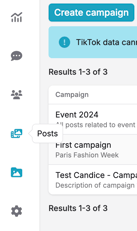
It is now time to add posts to your campaign to monitor their performance. To do so, go to the [Posts page](https://help.bodyguard.ai/knowledge/dashboard-posts?hsLang=en) using the side menu.
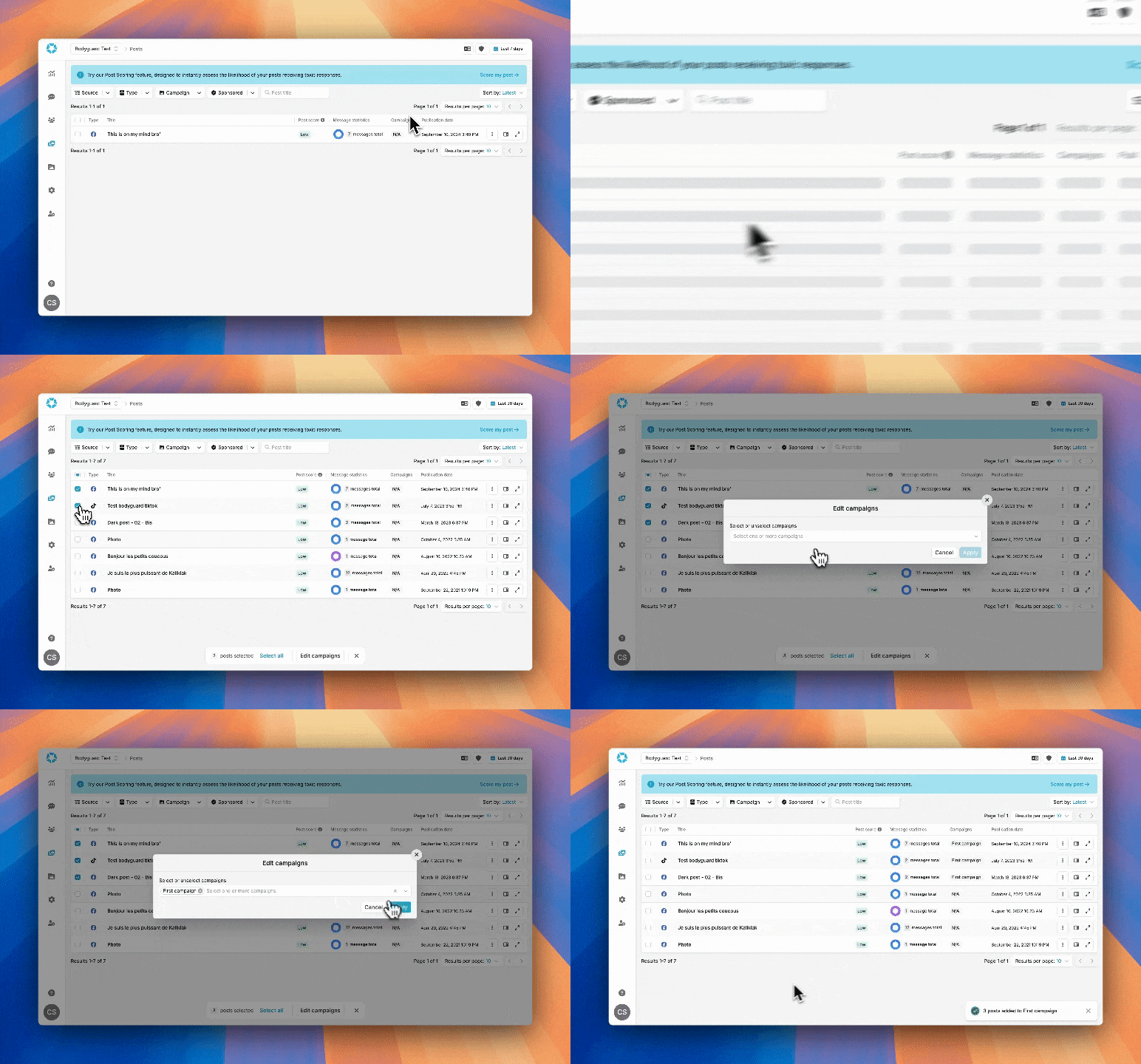
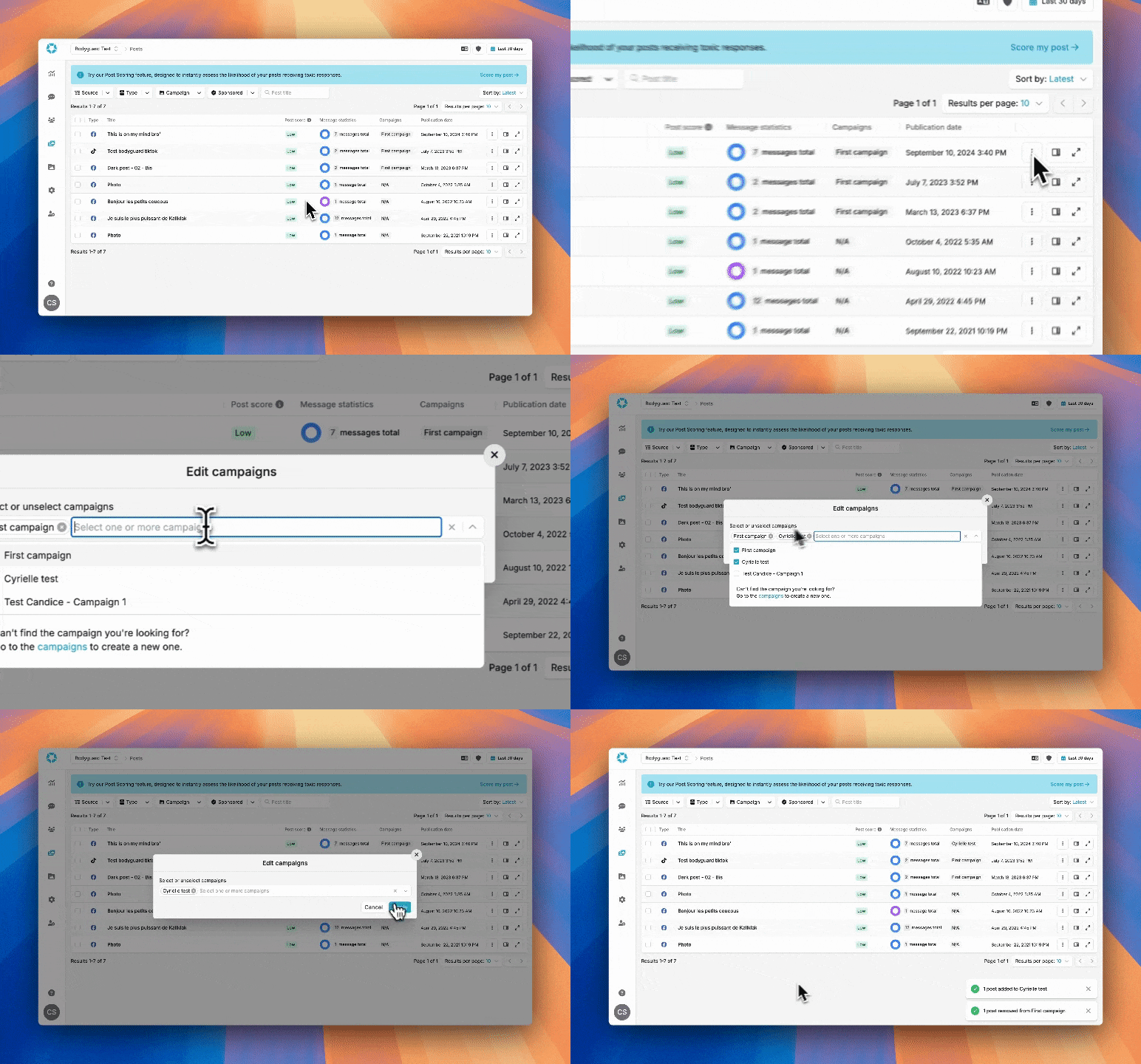
From the Posts page, you will see a new checkbox has appeared on the left to pick posts. Select the ones you want to add to your newly created campaign.

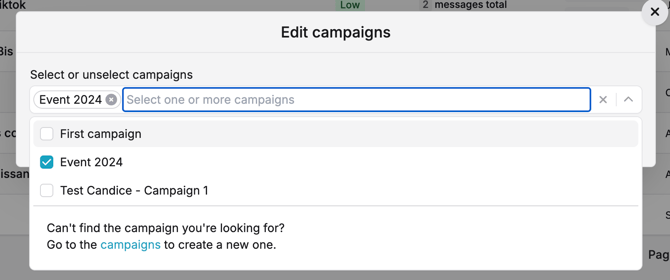
At the bottom of the page, click on "Edit campaigns" to choose the campaign(s) you want to affiliate it to.

All your created campaigns will appear. You can add one or several posts to a single or multiple campaigns.
**All the steps are resumed here:**
#### **Remove posts from a campaign**
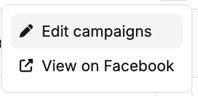
If a post is affiliated to a campaign by mistake, just click on the parameters represented by the 3 dots on the right of the interface.
Through "Edit campaigns" and its pop-up, unselect the campaign.
**All the steps are detailed here:**
### How to monitor campaigns performance
There are a few ways to get analytics from your campaigns.
#### From the campaign section
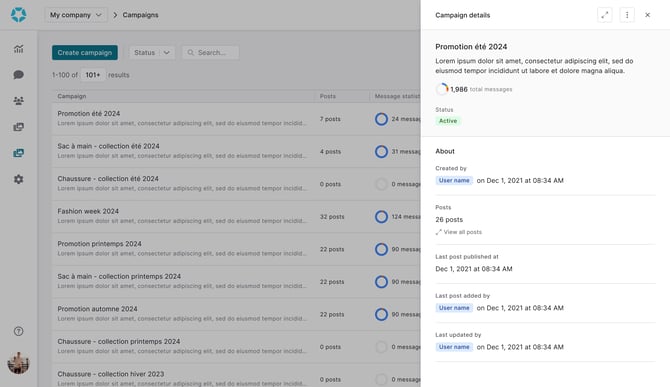
On the Campaigns page, you can have an overview of message analytics with a distribution of messages by category directly, and a more detailed view from the campaign details. If you click on the extension button on the top right, you can access a full page of your campaign information.
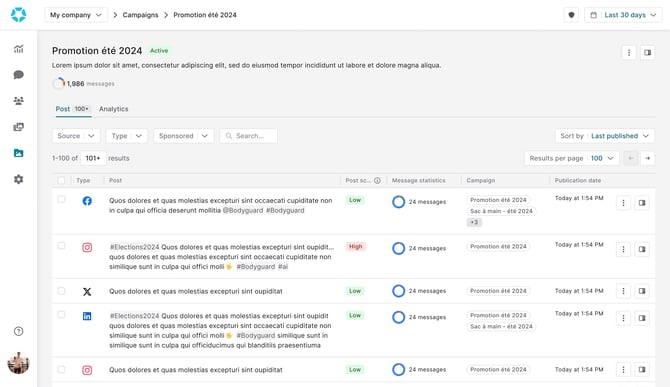
On the full page view, you can:
- Have the list of posts affiliated to the campaign and an overview of their performances.
- Select posts you want to remove from the campaign using the checkbox.
You can also access the "Analytics" section of the page to have your dedicated stats and analyze and download your favorite graphs:
#### From the Analytics section
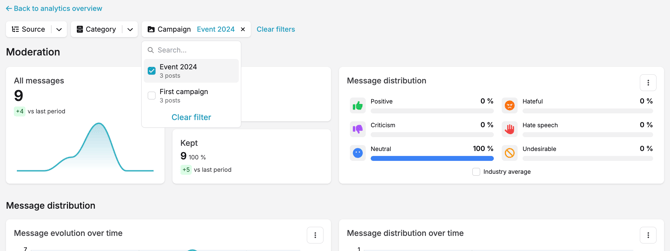
On the [Analytics page](https://help.bodyguard.ai/knowledge/dashboard-analytics?hsLang=en), you can access the moderation detailed view 
and a new filter has appeared. You can use it to display moderation analytics related to a specific campaign, using the time range like you usually do.
#### From the message section
On the [Messages page,](https://help.bodyguard.ai/knowledge/dashboard-messages?hsLang=en) you now have the possibility to sort comments by campaign using our new filter, available from the top of the page.

#### From the posts section
On the [Posts page](https://help.bodyguard.ai/knowledge/dashboard-posts?hsLang=en), you now have the possibility to sort posts by campaign using our new filter, available from the top of the page.

- [Connect to Bodyguard](https://help.bodyguard.ai/connect-to-bodyguard?hsLang=en#main-content)
- [Connect your social media](https://help.bodyguard.ai/connect-to-bodyguard?hsLang=en#connect-your-social-media)
- [Connect your own platform](https://help.bodyguard.ai/connect-to-bodyguard?hsLang=en#connect-your-own-platform)
- [Get started with Bodyguard](https://help.bodyguard.ai/get-started-with-bodyguard?hsLang=en#main-content)
- [Onboarding Guide: get started](https://help.bodyguard.ai/get-started-with-bodyguard?hsLang=en#onboarding-guide-get-started)
- [What is Bodyguard?](https://help.bodyguard.ai/get-started-with-bodyguard?hsLang=en#what-is-bodyguard)
- [Bodyguard Dashboard](https://help.bodyguard.ai/bodyguard-dashboard?hsLang=en)
- [Moderation by Bodyguard](https://help.bodyguard.ai/moderation-by-bodyguard?hsLang=en)
- [Advanced features](https://help.bodyguard.ai/advanced-features?hsLang=en)
- [Advanced use cases with Bodyguard](https://help.bodyguard.ai/advanced-use-cases-with-bodyguard?hsLang=en)
[](https://www.bodyguard.ai/fr)
[4-6 Chem. de l'Arénas Immeuble Unity, 06200 Nice](https://www.google.com/maps/place//data=!4m2!3m1!1s0x12cdc55b14fd6cdf:0x78a90f5bedce5d19?sa=X&ved=1t:8290&ictx=111)
[mailto:help@bodyguard.ai](mailto:help@bodyguard.ai)
Copyright © 2025, Bodyguard.ai